












 BLOGS
BLOGS  NEWSROOM
  CASE STUDIES
  WEBINARS
  PODCASTS
  ASSET HUB
  EVENT CALENDAR




















TL;DR
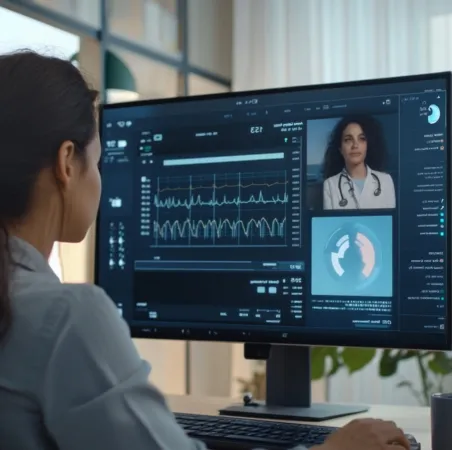
- RPM dashboards fail when designed to display data instead of driving decisions. A care manager with 85 patients does not need 15 metrics per patient visible at once.
- They need a risk-sorted panel showing which 7 patients need attention right now, why, and what to do about it. The dashboards that survive past month two share three design principles: risk-stratified primary view, alerts with patient context and suggested actions, and a 15-minute panel review target.
- This guide covers the anti-patterns that kill adoption and the design principles that drive daily usage from real deployments.
We have redesigned three RPM dashboards after launch because the care team stopped using them. In all three cases, the problem was the same: the dashboard showed too much data and surfaced too few decisions.
The first dashboard displayed every vital sign for every patient in a scrollable grid. Comprehensive. Technically impressive. The care manager scrolled past 300 rows every morning, trying to find the 12 patients who actually needed attention. By week three, she built a spreadsheet to track her own priority list because the dashboard couldn’t tell her who mattered.
The second dashboard had a beautiful alert panel. Every alert, every patient, in chronological order. Three hundred alerts per day. No risk scoring. No patient context. No suggested action. Just a timestamp and a number. The care manager printed the list, crossed off the ones she recognized as false alarms from memory, and worked from the paper.
The third dashboard put everything on one screen: vitals, medications, care plan, billing status, alert history, device status, and a chat window. For one patient, it was information-rich. For 85 patients, it was information overload. Nobody could find anything.
Three dashboards. Three failures. Same root cause: designed for the demo, not for the workflow.
Why Do Care Teams Stop Using RPM Dashboards?
Three anti-patterns that kill dashboard adoption within 30 days.
- Anti-pattern #1: the “show everything” dashboard: Fifteen or more metrics per patient are visible on the primary view. Heart rate, respiratory rate, SpO2, systolic BP, diastolic BP, weight, weight change, glucose, time-in-range, step count, sleep duration, medication adherence, last reading time, device battery, alert count. Each number is individually useful. Fifteen numbers multiplied by 85 patients is cognitive overload. The care manager’s brain cannot parse 1,275 data points on a screen. They stop trying.
- Anti-pattern #2: no risk prioritization: All patients visible in alphabetical order or by last reading time. A stable patient who just uploaded a normal BP reading appears above a deteriorating patient whose SpO2 has trended down 4% over three days, because the stable patient’s name starts with “A.” The care manager must manually scan every row to find the patients who need intervention. At 85 patients, that scan takes 45-90 minutes before clinical work even begins.
- Anti-pattern #3: alerts without context: The alert panel shows “Patient Johnson: SpO2 88%.” Is that concerning? It depends entirely on the context that the alert doesn’t provide. What is Johnson’s baseline? Is Johnson a severe COPD patient who lives at 89%? Did Johnson just change medications? Has this alert fired every day for the past 14 days? Without context, every alert looks equally urgent. When every alert looks equally urgent, no alert is urgent. This is where alert fatigue begins, and our RPM alert fatigue guide covers the full downstream consequences.
At BRI 2026, Nicole Speeny presented data showing clinician burnout in RPM programs is driven by dashboard and workflow design, not by patient acuity. The care teams that burn out are processing noise. The care teams that sustain are processing decisions. The difference is the dashboard.
The industry principle holds: technology is 30% of RPM program success. Clinical workflow is 70%. The dashboard is where technology and workflow meet. Get it wrong, and both fail.
Find Out If Your Dashboard is Slowing Care Teams Down
What Should the Primary View Show?
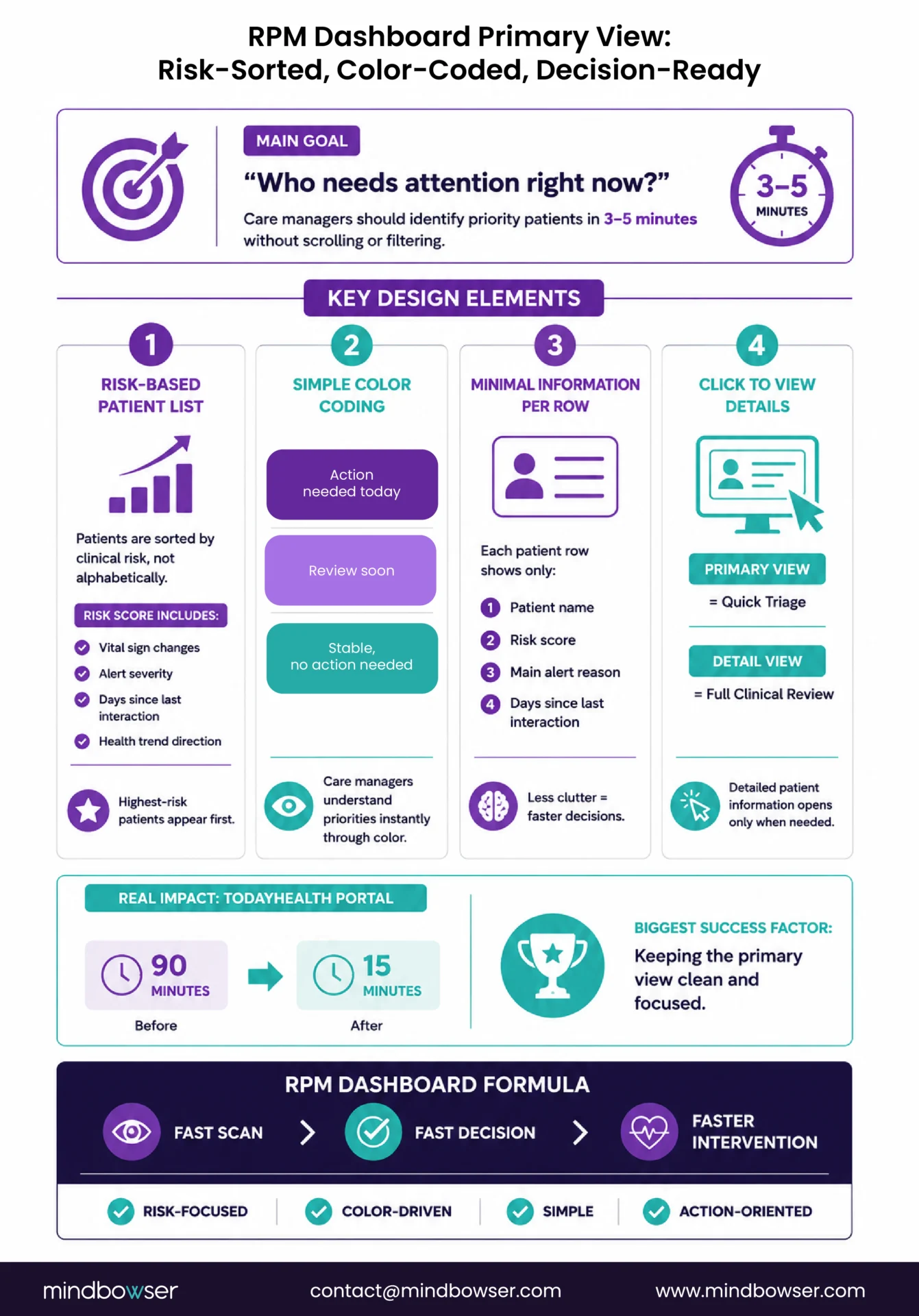
The primary view answers one question: “Who needs my attention right now?”
Everything else is secondary. The care manager logs in at the start of their shift, sees the primary view, and within 3-5 minutes knows exactly which patients to focus on. If the primary view requires scrolling, filtering, or interpretation to identify priority patients, it has failed.
Design elements that work:
- Risk-stratified patient panel: Patients were sorted by composite risk score, with the highest risk at the top. Not alphabetical. Not by the last reading time. By clinical priority. The composite score combines multiple vital sign deviations, alert severity, days since last care manager interaction, and trending direction. The patient at the top of the list is the patient most likely to need intervention today.
- Color-coded status: Three colors, three meanings. Red: action required today (clinical deterioration signal, unresolved critical alert). Yellow: review at next scheduled check (trending concern, non-critical alert pending). Green: stable (no action required, all readings within the patient’s baseline). The care manager’s eye scans color before reading text. Red-yellow-green is processed in milliseconds.
- Minimal information per row: Four elements: patient name, risk score, primary alert reason (one line), days since last interaction. That is sufficient for the care manager to decide “click into this patient” or “move to next.” Every additional element on the primary view row adds cognitive load that slows the scan.
- Click to expand: Full patient detail is one click away. Not on the primary view. The primary view is a triage tool. The detail view is a clinical tool. They serve different purposes at different moments in the workflow.
When we built the Today Health care manager portal, the primary view followed this exact pattern. Risk-sorted list, three-color status, four elements per row. Care managers could process their 85-patient panel in 15 minutes instead of 90. The design decision that mattered most: what we left off the primary view, not what we put on it.
How Should Alerts Be Displayed and Queued?
Alerts displayed as a chronological list are useless at scale. Alerts displayed as a prioritized queue with patient context and suggested actions are the core clinical tool.
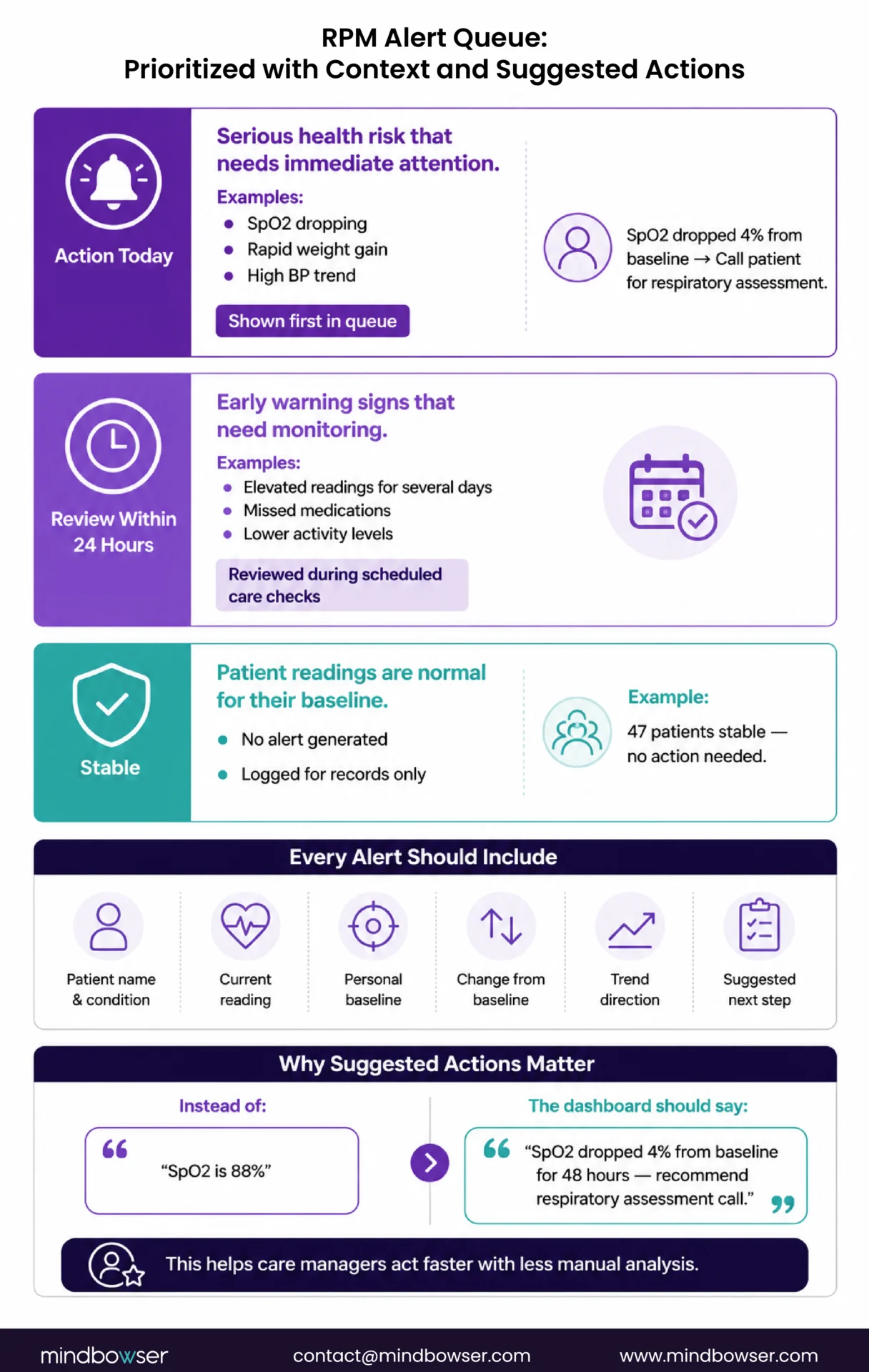
Three-tier queue:
- Red alerts (action today): clinical deterioration signal. SpO2 dropping from baseline, weight gain suggesting fluid retention, critical BP reading with upward trend. These appear at the top of the queue with a visual urgency marker
- Yellow alerts (review within 24 hours): trending concern that is not yet critical. Slightly elevated readings for 3+ consecutive days, missed medication adherence, and reduced activity level. These queue for the next scheduled panel review block
- Green readings (informational): logged, but no notification generated. Patient readings within their personal baseline. These never appear in the alert queue. The care manager only sees them when they click into the patient detail view.
Each alert must show:
- Patient name and primary condition
- Current reading and which vital sign triggered the alert
- Patient’s personal baseline for that metric (not just a population threshold)
- Deviation magnitude (“SpO2 dropped 4% from patient baseline of 92%”)
- Trend direction (getting worse, stable deviation, improving)
- Suggested action (“Recommend care manager call to assess respiratory status” or “Review medication change from 3 days ago for dosage impact”)
The suggested action is the design element that converts a data notification into a clinical decision. A dashboard that says “SpO2 88%” requires the care manager to recall the patient’s history, check their baseline, review recent medication changes, and decide what to do. A dashboard that says “SpO2 dropped 4% from baseline of 92%, trending down for 48 hours, recommend respiratory assessment call” has already done the cognitive work. The care manager reviews the suggestion, agrees or modifies, and acts.
Evaluate Your Current RPM Dashboard Against Care Team Workflow Requirements
What Does the Patient Detail View Need?
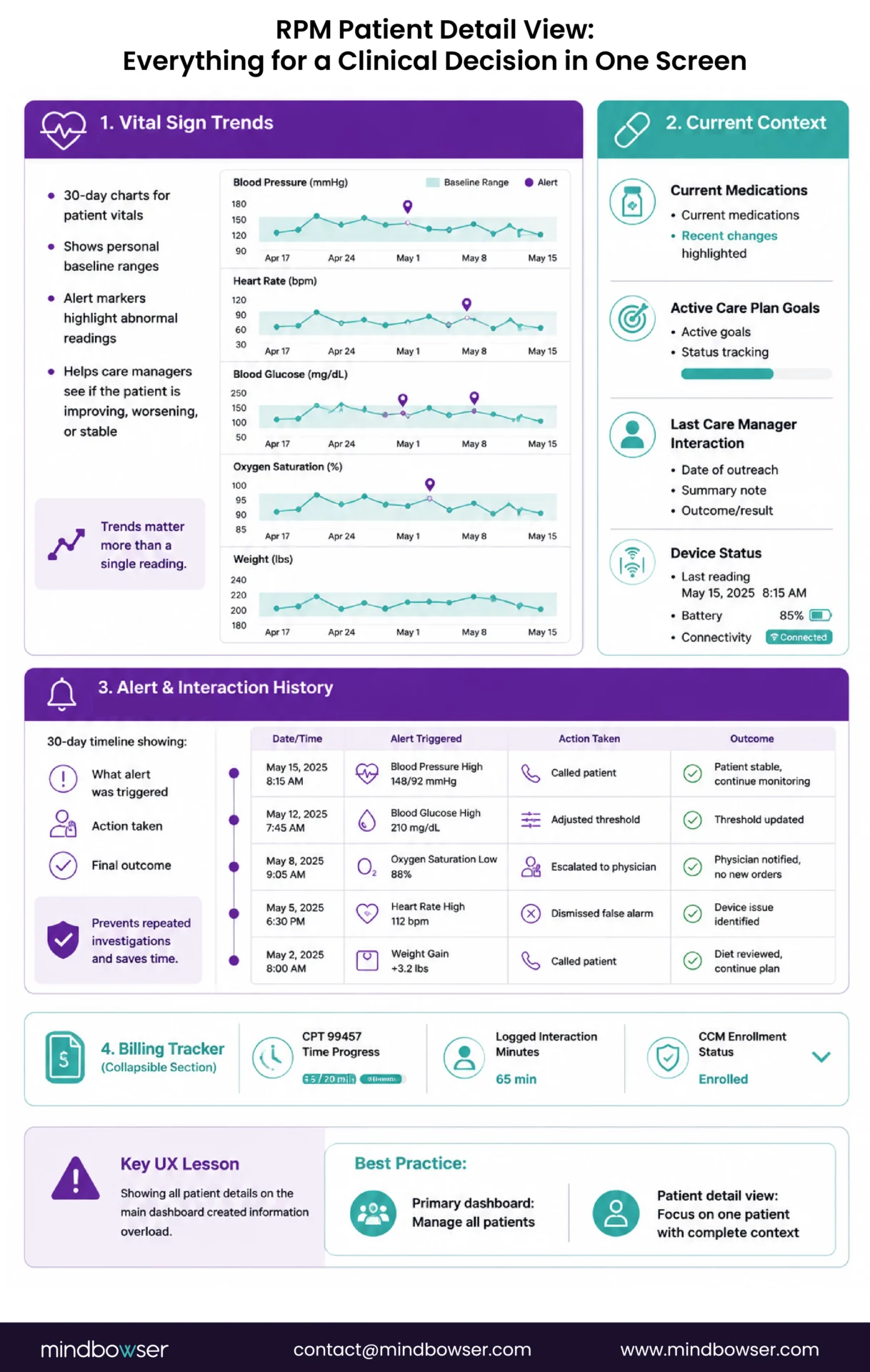
When the care manager clicks into a patient from the primary view, they need everything for a clinical decision in one screen. Not two tabs. Not a scrollable page. One screen with organized sections.
- Section 1: Vital sign trends (top half of screen). Line charts showing 30-day trends for the patient’s monitored vital signs. Each chart overlays the patient’s personal baseline as a band (not just a threshold line). Threshold markers show where alerts fired. The care manager sees the trajectory, not just the current number. A BP reading of 148/92 means different things depending on whether the trend is rising, stable, or descending from 160/100.
- Section 2: Current context (right panel). Current medications (especially recent changes in the past 14 days, highlighted). Active care plan goals with status. Last care manager interaction: date, summary note, outcome. Device status: last reading timestamp, device battery (if available), connectivity status.
- Section 3: Alert and interaction history (bottom panel). Chronological list of alerts for this patient over the past 30 days. Each alert shows: what fired, what action was taken (called patient, adjusted threshold, escalated to physician, dismissed as false alarm), and the outcome. This history prevents the care manager from re-investigating an alert that was already addressed last week.
- Section 4: Billing tracker (collapsible). Has this patient hit the 99457 time threshold this month? How many minutes of documented interactive time have been logged? Is the patient enrolled in concurrent CCM? This section helps the care manager ensure every patient interaction is documented for billing, but it stays collapsible so it doesn’t clutter the clinical sections.
The mistake we made on our first dashboard build: putting all four sections on the primary view. Every patient showed trends, medications, alerts, and billing at once. One patient looked great. Eighty-five patients created a wall of information nobody could parse. The detail view is for one patient at a time. The primary view is for the panel.
How Should Shift-Based and Multi-Site Views Work?
RPM care managers work shifts. The dashboard must support handoff between shifts without information loss.
Shift view elements:
- Patients pending review (alerts generated during this shift, not yet addressed)
- Patients reviewed with actions taken (documented, visible to next shift)
- Patients called, but documentation is incomplete (flagged for completion before shift ends)
- Handoff notes per patient (free-text field, similar to nursing shift reports, limited to 2-3 sentences per patient)
The handoff problem is acute for hospital-at-home programs (see our hospital at home RPM guide) where 24/7 continuous monitoring means every shift inherits unresolved issues from the previous shift. A care manager starting the 7 AM shift needs to see what happened at 3 AM without reading through the full alert log. The shift view summarizes: 2 red alerts acted on, 1 pending escalation, 3 patients called.
Multi-site view for health systems spanning multiple locations: each site or care team has its own patient panel. A regional manager sees aggregate metrics (total patients monitored, alert volume by site, staffing utilization) without seeing individual patient data. Role-based access control (covered in our HIPAA compliance checklist) ensures a care manager at Site A cannot access patient data from Site B.
What Reporting Do Program Directors Need?
Care managers use the clinical dashboard. Program directors use the analytics dashboard. Different users need different views on the same data.
Operational metrics (program director):
- Enrolled patient count and active monitoring rate (% of enrolled patients transmitting data)
- Alert volume: total, by type, by severity tier. Trend over time (is alert volume growing with patient count, or growing faster than patient count?)
- Alert-to-action ratio: what percentage of routed alerts generate clinical action? Target: 40-60%. Below 20% means too much noise. Above 80% means possibly filtering too aggressively
- 99457 time compliance: percentage of patients hitting the 20-minute interactive time threshold. This directly correlates to revenue
Financial metrics (CFO):
- Monthly billing revenue by CPT code (99453, 99454, 99457, 99458, concurrent CCM codes)
- Revenue per patient (average and distribution)
- Program cost per patient (staffing, platform, devices)
- Net margin trend month over month
Quality metrics (CMO / quality committee):
- BP control rates for hypertension patients (pre-RPM vs current)
- Readmission rates for cardiac patients (enrolled vs non-enrolled)
- A1C trends for diabetes patients (6-month trajectory)
- Patient satisfaction scores (if collected)
- HRRP penalty impact for cardiac programs
These views should be separate tabs or dashboards, not mixed into the care manager’s clinical view. A care manager who sees billing revenue on their patient panel starts optimizing for documentation instead of clinical judgment. Keep the clinical view clinical. Keep the analytics view analytical.
Design for the 15-Minute Panel Review
The ultimate test of an RPM dashboard: can a care manager review their 85-patient panel, identify the patients who need attention, and begin clinical actions within 15 minutes of logging in?
If yes, the dashboard is working. If the answer is “I need 90 minutes to process all the data before I can start making calls,” the dashboard is a liability that is burning out the care team and slowing down the clinical program.
The design principles that get you to 15 minutes:
- Risk-sorted primary view with 3 colors and 4 data elements per row
- Alert queue with patient context and suggested actions (not a chronological number list)
- One-click patient detail with trends, context, and history in one screen
- Shift handoff built into the workflow
- Analytics and billing separated from the clinical view
On our first RPM dashboard build, we designed for the vendor demo. Clean, comprehensive, every metric visible, beautiful data visualizations. The care team used it for two weeks. We redesigned it for the care manager’s actual workflow: risk-sorted, color-coded, action-oriented, intentionally sparse on the primary view. They are still using it three years later. The second version had fewer features. It had more utility.
PatientWatch is our accelerator for real-time monitoring dashboards, built with these design principles: risk-sorted panels, alert queues with suggested actions, shift-based handoff views, and role-based access for multi-site programs. It is the dashboard we wished existed when we started building RPM platforms.
If your care team says the dashboard is unusable, we have solved that exact problem three times. The redesign usually takes 4-6 weeks, and the impact on care team satisfaction and program sustainability is immediate.
A risk-stratified patient panel sorted by composite risk score, not alphabetically. Each patient row shows four elements: name, risk score, primary alert reason (one line), and days since last interaction. Color-coded status: red (action today), yellow (review within 24 hours), green (stable). The primary view is a triage tool. Full patient detail opens on click. The test: can the care manager identify priority patients within 3-5 minutes of logging in?
Three-tier prioritized queue, not a chronological list. Red alerts (action today) at top with full patient context: current reading, patient baseline, deviation magnitude, trend direction, and suggested clinical action. Yellow alerts (review within 24 hours) queued for next scheduled review block. Green readings logged but not displayed in the alert queue. The suggested action per alert is the design element that converts data notifications into clinical decisions.
One screen with four sections: (1) 30-day vital sign trend charts with personal baseline overlay and alert markers, (2) current medications with recent changes highlighted, active care plan goals, last interaction summary, (3) 30-day alert history showing what fired, what action was taken, and outcomes, (4) collapsible billing tracker showing 99457 time documentation progress and CCM enrollment status. All four sections visible without scrolling on the detail view.
Shift view shows three categories: patients pending review (unaddressed alerts from current shift), patients reviewed with actions documented (visible to next shift), and patients with incomplete documentation (flagged for completion before shift end). Handoff notes per patient (2-3 sentence free-text field) provide shift-to-shift context. For 24/7 programs like hospital at home, the shift summary shows actions taken, actions pending, and escalations in progress.
Three categories separated into distinct views: Operational (enrolled count, active monitoring rate, alert volume by type and severity, alert-to-action ratio targeting 40-60%), Financial (monthly revenue by CPT code, revenue per patient, program cost per patient, net margin trend), Quality (BP control rates, readmission rates enrolled vs non-enrolled, A1C trends, patient satisfaction). These views serve the program director, CFO, and quality committee respectively and must be separated from the care manager’s clinical dashboard.