













 BLOGS
BLOGS  NEWSROOM
  CASE STUDIES
  WEBINARS
  PODCASTS
  ASSET HUB
  EVENT CALENDAR






















The Challenge: Big Data, Bigger Complexity
Healthcare organizations sitting on mountains of valuable patient data face a common frustration: getting it out efficiently.
Whether you’re building analytics dashboards, feeding AI models, syncing your data warehouse, or preparing research cohorts, extracting population-level data from Epic traditionally meant weeks of custom development, complex API integrations, and ongoing maintenance headaches.
ConnectHealth.ai changes everything.
With our visual workflow builder, you can set up automated bulk data exports from Epic in under 30 minutes, and you won’t write a single line of code.
What our customers are doing with Bulk Export:
- Real-time population health dashboards
- Training AI/ML models on clinical data
- Nightly data warehouse synchronization
- Research cohort extraction at scale
- Automated regulatory reporting
Ready to unlock your data? Let’s dive in.
Step 1: Connect to Epic in Minutes
ConnectHealth.ai makes connecting to Epic’s Backend Services effortless. No infrastructure to manage, no complex OAuth flows to implement just point, click, and connect.
A. Navigate to Your Dashboard
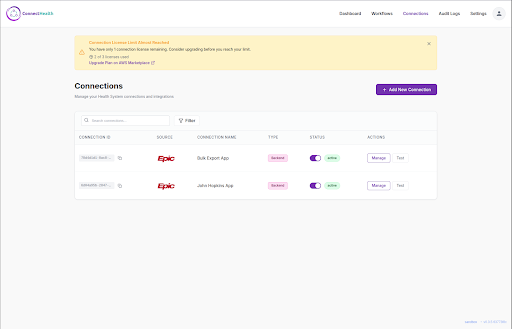
From your ConnectHealth.ai dashboard, click Connections to see all your EHR integrations in one place.
B. Add Your Epic Connection
Click “Add New Connection” and select Epic from our library of supported EHR systems.
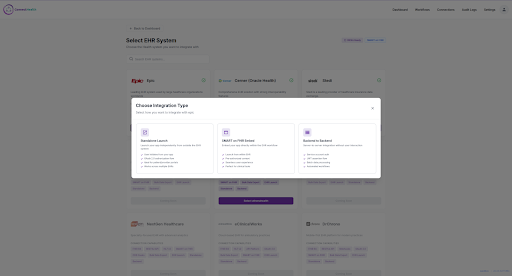
C. Choose Backend-to-Backend
For bulk exports, select “Backend to Backend” This enables secure, automated data access without user intervention
D. Enter Your Credentials
Simply paste your Epic credentials and add the generated JWKs URL in your Epic App ConnectHealth.ai handles all the JWT signing, token exchange, and authentication complexity behind the scenes.
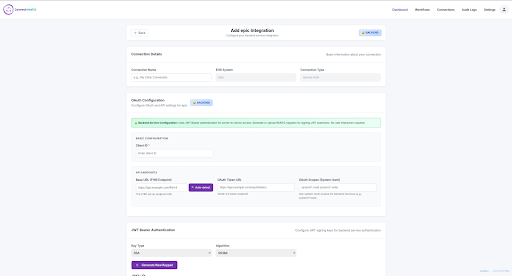
| You Provide | ConnectHealth.ai Handles |
| Client ID | JWT token generation |
| Scopes | JWKs hosting and Generation |
| FHIR URL | OAuth token exchange |
| Automatic token refresh | |
| Error handling & retry |
E. Verify with One Click
Hit “Run Connection Test” and watch ConnectHealth.ai validate your entire integration in seconds.
🎉 That’s it. You’re connected to Epic and ready to build.
Step 2: Build Your Bulk Export Workflow, Visually
This is where ConnectHealth.ai really shines. Our visual workflow engine lets you design sophisticated data pipelines by simply dragging and connecting nodes.
A. See It in Action
Here’s a production-ready Patient Bulk Export workflow built entirely in our visual editor:
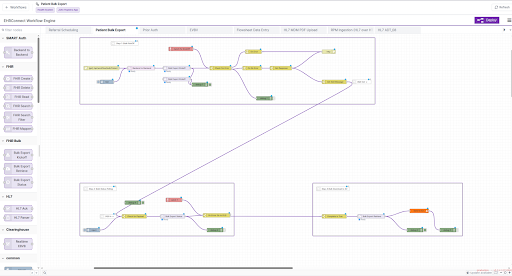
The workflow handles everything: authentication, export initiation, progress monitoring, error handling, and data retrieval, all through intuitive visual nodes.
B. Three Simple Sections
| Section | What It Does | Time to Configure |
| Kickoff | Authenticates and initiates export | 2 minutes |
| Monitor | Polls until complete | 1 minute |
| Download | Retrieves your data | 2 minutes |
i. Section 1: Kickoff, Start Your Export
Drag these nodes onto the canvas:
Backend to Backend → Automatically obtains your access token
Bulk Export Kickoff → Sends the export request to Epic
Configure the Kickoff node:
- Select your Epic connection
- Enter your Group ID
- Choose resource types (Patient, Encounter, Observation, etc.)
That’s the entire authentication logic. No token management code. No refresh logic. No error handling boilerplate. ConnectHealth.ai handles it all.
ii. Section 2: Monitor Smart Progress Tracking
Add the Bulk Export Status node with auto-polling enabled. It will:
- Check status every 5 seconds
- Handle “in progress” responses gracefully
- Automatically detect completion
- Route errors to your error handler
Traditional approach: 50+ lines of polling code with retry logic
ConnectHealth.ai: One node, one toggle
iii. Section 3: Download Get Your Data
The Bulk Export Retrieve node downloads all exported files automatically:
| Feature | Benefit |
| Auto-authentication | One token for all downloads |
| Parallel downloads | Fast retrievals of large exports |
| S3 compatibility | Direct upload to your data lake |
| Resource filtering | Download only what you need |
Step 3: Deploy and Run
A. One-Click Deployment
Click Deploy — your workflow is instantly live and production-ready.
B. Multiple Trigger Options
| Trigger Type | Use Case |
| Manual | Testing and ad-hoc exports |
| Scheduled | Nightly warehouse sync (e.g, 2 A.M daily) |
| API Endpoint | Trigger from external systems |
| Event-driven | React to upstream changes |
C. Your Data, Delivered
Bulk exports arrive as industry-standard NDJSON files:
{“resourceType”:”Patient”,”id”:”12345″,”name”:[{“family”:”Smith”,”given”:[“John”]}]}
{“resourceType”:”Patient”,”id”:”67890″,”name”:[{“family”:”Johnson”,”given”:[“Jane”]}]}
Send your data anywhere:
| Destination | Integration |
| Amazon S3 | Direct upload node |
| Snowflake | Database connector |
| BigQuery | Cloud data warehouse |
| Custom API | HTTP request node |
Why Teams Choose ConnectHealth.ai for Bulk Export
A. Before ConnectHealth.ai
- Weeks of custom development
- Complex OAuth implementation
- Manual error handling code
- Ongoing maintenance burden
- Security and compliance concerns
B. With ConnectHealth.ai
- 30 minutes to production
- Enterprise-grade security built-in
- Visual debugging and monitoring
- Automatic error recovery
- HIPAA-compliant infrastructure
Quick Reference
A. The Nodes You’ll Use
Node | What It Does |
| Backend to Backend | Secure JWT authentication |
| Bulk Export Kickoff | Initiates the export |
| Bulk Export Status | Monitors progress |
| Bulk Export Retrieve | Downloads the data |
Common Resource Combinations
| Goal | Resources to Export |
| Patient Registry | Patient |
| Clinical Summary | Patient, Condition, MedicationRequest |
| Care Encounters | Patient, Encounter, DocumentReference |
| Lab Analytics | Patient, Observation, DiagnosticReport |
Get Started Today
You’ve seen how ConnectHealth.ai transforms complex FHIR Bulk Export into an intuitive visual workflow. What used to take weeks of development now takes minutes.
You can download the above workflow here – ConnectHealth_Bulk_Export_EPIC
Your next steps:
- Sign up for ConnectHealth.ai
- Connect your Epic sandbox
- Deploy your first bulk export workflow
- Start unlocking your population health data