






























GitHub Copilot in VS Code is an AI-powered coding assistant developed by GitHub and OpenAI. It helps you write code faster by suggesting lines or blocks of code based on your context. Think of it as a smart pair programmer that works right inside VS Code.
What is GitHub Copilot in VS Code
GitHub Copilot in VS Code helps you write code faster by suggesting lines or blocks of code based on your context. It’s like a smart pair programmer that understands your project and predicts your next move.
Setting Up GitHub Copilot in VS Code
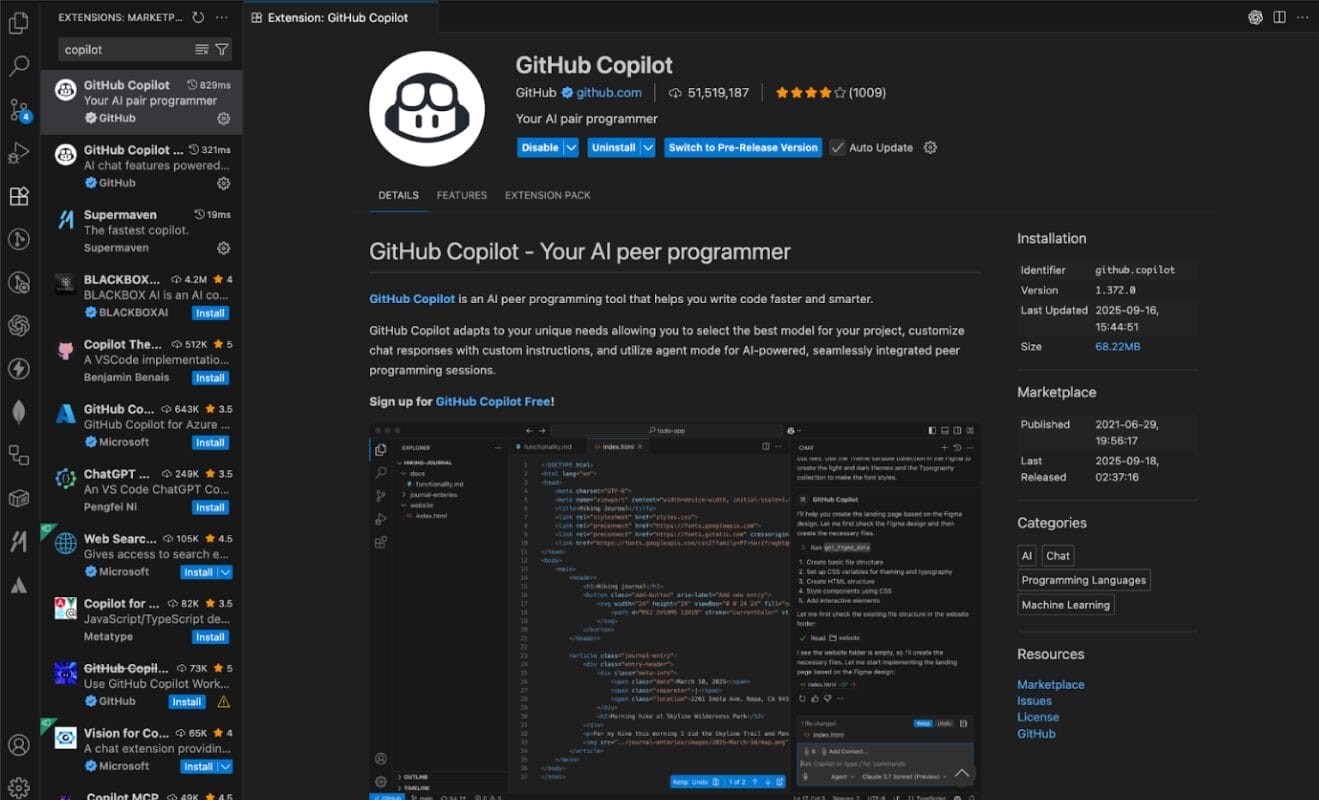
Step 1: Install the Extension
- Open VS Code.
- Go to the Extensions tab (Ctrl+Shift+X).
- Search for GitHub Copilot and click Install.
Step 2: Sign In
- Authenticate with your GitHub account.
- Enable inline suggestions to start using GitHub Copilot in VS Code.
Step 3: Configure Settings
- Go to VS Code settings (Ctrl+,).
- Search for “Copilot” to tweak how suggestions appear inside GitHub Copilot in VS Code.
Start Optimizing Your Workflow Today.
How I Use GitHub Copilot in VS Code Efficiently
Code Autocompletion (Boilerplate)
GitHub Copilot in VS Code predicts and completes code as you type. For example, when I start writing a React component or a Node.js API route, Copilot often fills in the rest.
Copilot can suggest the entire function after you type the comment or function name.
Function/Logic Suggestions
If I write a function signature or a comment describing what I want, GitHub Copilot in VS Code suggests the logic. This is super helpful for repetitive tasks.
Comment-to-Code (Docstrings)
Writing a comment like // Get all users from database and pressing Tab often gives me the full code block. GitHub Copilot in VS Code makes it effortless to generate boilerplate code.
Test Case Generation
GitHub Copilot in VS Code can generate unit tests if you write a comment like // Write tests for the add User function. This saves a lot of time, especially for basic test cases.
Refactoring Help
If I want to refactor a function, I just write a comment like // Refactor to use async/await, and GitHub Copilot in VS Code suggests the updated code.
Copilot Chat & Inline Chat
With Copilot Chat, you can ask questions right inside VS Code. For example:
- “What does this function do?”
- “Can you optimize this code?”
- “Write a test for this function.”
Just select the code, right-click, and choose Ask Copilot. This makes GitHub Copilot in VS Code feel like a true coding companion.
Copilot Agent & Ask Mode
The Agent acts like a smart assistant that can perform tasks like refactoring, explaining code, or even running commands. Ask Mode is where you type natural language queries and GitHub Copilot in VS Code responds with code or actions.
Example:
Ask: “Convert this JavaScript function to TypeScript.”
Copilot provides the converted code instantly.
Prompt Files & Custom Instructions
You can guide GitHub Copilot in VS Code using prompt files (.copilot folder). For example, you can set rules for code style or add project-specific instructions to maintain consistency.
Example:
Add a prompt file to enforce using arrow functions or a specific comment style.
Best Practices I Follow
- Accept vs Edit Suggestions: Don’t just accept everything. Edit suggestions from GitHub Copilot in VS Code to fit your style and project needs.
- Write Meaningful Prompts: The more specific your comments, the better Copilot’s suggestions.
- Treat Copilot as a Pair Programmer: It’s a helper, not a replacement. Always review the code.
- Review for Correctness & Security: GitHub Copilot in VS Code can sometimes suggest outdated or insecure code. Always double-check.
Efficiency Gains
Using GitHub Copilot in VS Code delivers measurable improvements:
- Faster prototyping and debugging
- More tests written in less time
- Less time spent on boilerplate
Limitations & Cautions
- Sometimes GitHub Copilot in VS Code suggests incorrect or outdated code.
- Manual review is always needed.
- Be careful with sensitive data and licensing.

Conclusion
GitHub Copilot in VS Code has made my workflow smoother and faster. Try Copilot Chat, define team prompts, and measure your outcomes to truly see the productivity boost.